Photoshop Express Photo Editor
- 4.6
- Rating
- 100.00M
- Installs
- Free
- Price

 Analysis by App-foxy
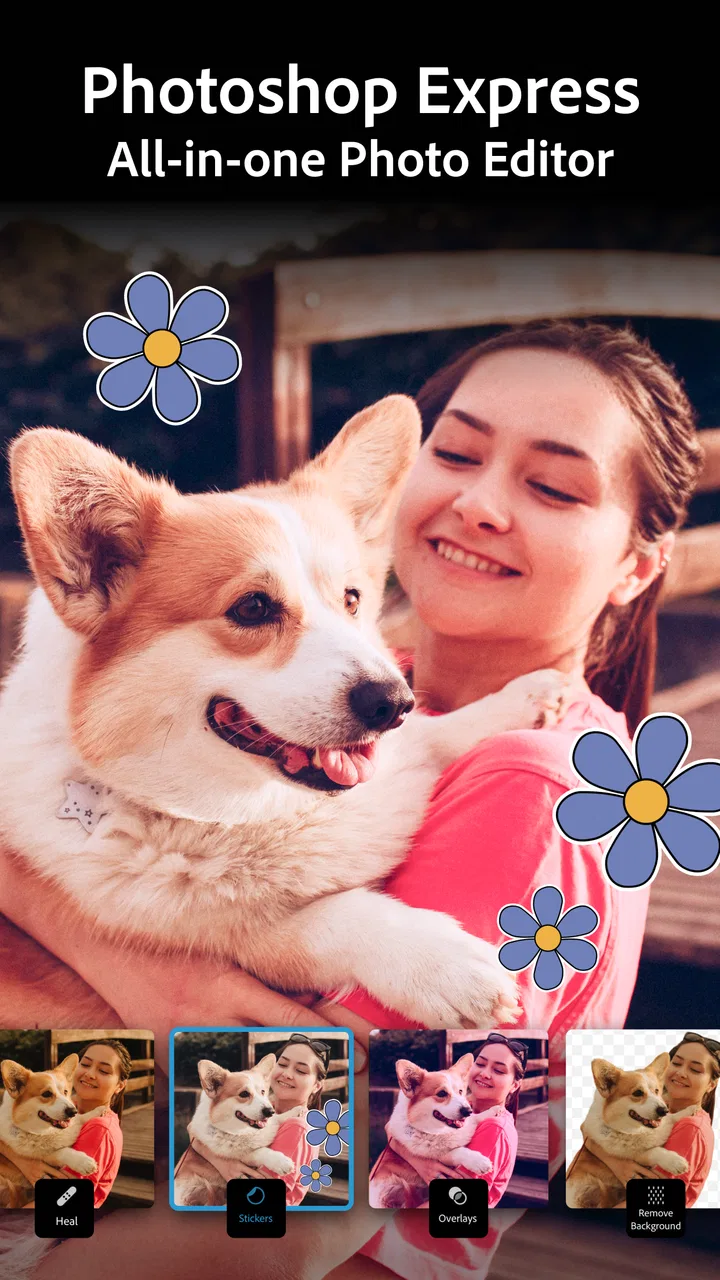
I came away from Photoshop Express Photo Editor thinking of it as a practical middle ground: much more capable than the basic editor built into a phone, but less intimidating than a full desktop-style photo suite. I used it as a quick photography workspace for improving ordinary pictures, preparing images for social posts, and giving imperfect shots a more deliberate look without spending a long time learning complicated controls.
That balance is the main reason I would recommend it. Adobe has put familiar editing ideas into a mobile format that feels approachable, while still leaving room for more careful adjustments when a one-tap filter is not enough. It is free to install, suitable for Everyone, and available from Adobe for both casual editing and more serious everyday use. The important question is not whether it can replace every other photo tool—it cannot—but whether its combination of speed, guided edits, filters, and AI-assisted options fits the way you actually handle photos.
Where Photoshop Express earns its place on a phone
The first thing I noticed is how quickly the app gets me from an image picker to a usable result. That matters more than it sounds. Many mobile editors offer a huge collection of controls, but the experience becomes slow when I only want to rescue a dim indoor photo, improve a slightly flat landscape, or make a portrait look cleaner before sharing it. Here, the editing process feels designed around those short sessions.
You May Also Like

 Blood Strike: 2.5 Anniversary
Blood Strike’s Loadouts Turn Every Drop Into a Tactical Gamble
A close look at Blood Strike’s custom loadouts: how fast access to signature weapons reshapes its battle royale rhythm, rewards preparation, and narrows the gap between fights.

 Pandora - Music & Podcasts
Pandora’s Music Is Easy to Start, but Harder to Recover
Pandora’s strength is its low-effort path from a seed to a station. Its weak spot is how much confidence it asks you to place in connection, setup, and quiet recovery.

 8 Ball Pool
 Is Built on Rivalries, Rematches, and Routine
A close look at the rivalries, rematches, shared routines, and unanswered safety questions that turn a quick pool match into a persistent mobile community.

 Samsung Music
’s Quiet Strength Is Playing What You Already Own
Its reach comes less from spectacle than from dependable access to a personal library. That simplicity is both the app’s strongest retention engine and its ceiling.

 AccuWeather: Weather Radar
AccuWeather Review: A Quick, Clear Forecast for Everyday Decisions
For everyday plans, the best forecast is the one you can understand quickly. AccuWeather makes rain timing, radar, and local conditions easy to act on, with a few trade-offs.

 Hill Climb Racing
Why Hill Climb Racing Still Turns Crashes Into One More Run
A tiny car, a bumpy hill and one more upgrade: Hill Climb Racing keeps resurfacing because its simple chaos makes every near-miss feel personal.
More From Our News Desk
View All News


The app belongs firmly in the photography category, but I would describe it less as a replacement for a professional workstation and more as a flexible finishing room. Its strongest use is taking a photo that is already close to acceptable and helping it look intentional. I can start with a filter, reduce its strength when the effect feels too obvious, and then move into individual corrections rather than accepting an all-or-nothing style.
That layered approach is useful because filters often look attractive in previews but become distracting when applied at full force. My preferred workflow is to choose a visual direction first, then lower the intensity and correct the image manually. This keeps skin tones from becoming overly colored and prevents skies, walls, or clothing from taking on an artificial cast. The best results usually come from restraint, not from stacking every available effect.
AI editing tools add another convenient starting point. I see them as assistants rather than replacements for judgement. They can help me reach a recognizable result quickly, especially when I am unsure which adjustment to try first. I still check the image at normal viewing size afterward, because an edit that looks impressive in a close preview may feel too strong once the whole picture is visible.
One of the app’s practical strengths is that it supports different levels of attention. I can make a fast correction when I am sending a picture to a friend, or spend longer refining the balance between color, contrast, and atmosphere. That makes it more useful than a basic social-media filter tool, where the available look is often tied to a single preset and offers little control over the final mood.
A useful workflow for ordinary phone photos
My most reliable routine starts with cropping and composition rather than effects. If the subject is too close to an edge or the horizon is distracting, no filter will fully fix the image. I first make the frame feel balanced, then address brightness and color, and only afterward consider a stylistic finish. This order prevents me from polishing details that I may later remove with a crop.
For a family photo taken indoors, I would begin by checking whether faces are readable without making the entire scene look washed out. A small tonal correction is often more convincing than a dramatic brightening. I then inspect the color, because indoor lighting can make neutral surfaces look warmer or cooler than expected. A subtle filter can unify the image, but I avoid using it as a substitute for correcting an obvious color problem.
For travel images, cropping and straightening are especially important. A beautiful view can lose its impact when the horizon tilts or when too much empty foreground competes with the main subject. After fixing the structure, I use a restrained color treatment to bring back the feeling I had when taking the picture. If the edit starts making clouds look painted or foliage unnaturally intense, I know I have gone too far.
For a quick portrait, I prefer changes that preserve recognizable texture. The temptation with mobile editing is to smooth everything until the face looks like a digital illustration. A better approach is to use the available enhancement tools carefully, zoom out regularly, and compare the result with the original. The goal is usually not to create a new face; it is to make the existing photo look clearer and more balanced.
Small decisions that make a noticeable difference
A less obvious advantage is how well the app suits a two-pass workflow. On the first pass, I make broad decisions: crop, overall brightness, color direction, and whether the picture needs a filter at all. On the second, I look for distractions and signs of over-editing. This is more dependable than attempting to perfect every slider in one continuous session, particularly on a phone where the image is displayed relatively small.
I also recommend judging an edit in the context where it will be viewed. A picture intended for a messaging app may need a different level of contrast from one that will be kept in a personal album. A very subtle change can disappear on a bright phone screen, while a strong effect can become tiring when the image is viewed repeatedly. Photoshop Express is responsive to that kind of adjustment, but it does not make the judgement for me.
Another useful habit is to keep a clean version of the original before experimenting. This is especially important when trying AI-assisted effects or a bold filter. Creative edits are easier to evaluate when I know I can return to the untouched image, and it makes the app less stressful to use on pictures that cannot be recreated.
For people who edit batches of similar images, consistency matters more than making each picture individually dramatic. I would choose one general look, apply it conservatively, and then correct only the images that differ because of lighting. That produces a more coherent set than choosing a different strong effect for every photograph. The app works well for this kind of light editorial discipline, even though I would not treat it as a full professional asset-management system.
What the free experience means in practice
The app is free, which makes it easy to try without committing money first. That is a real advantage for someone who wants to discover whether mobile editing fits their routine. At the same time, in-app purchases range from $2.99 to $99.99 per item, so I would pay attention to which tools or creative options are available during the editing process before building a workflow around them.
That pricing range also changes how I would recommend it. A casual user who only needs straightforward improvements may be satisfied without treating the app as a paid creative platform. Someone who wants to use advanced capabilities regularly should consider the cost of the specific tools they value, rather than assuming that installing the free app means every editing option is included.
I appreciate that the free entry point lowers the barrier, but I do not think the purchase structure should be ignored. If you are comparing it with a completely free editor, look beyond the number of filters and ask whether you need the particular premium options. If your needs are simple, a basic tool may be enough. If you want Adobe’s more polished editing environment and are comfortable evaluating optional purchases, the app becomes more compelling.
The limitation I noticed most
The main weakness is that the app can encourage experimentation without always making the final choice easier. Filters, AI effects, and correction tools are useful, but a large creative menu can turn a five-minute edit into a long sequence of comparisons. I sometimes found myself judging tiny differences between treatments that did not meaningfully improve the photograph.
This is not a failure of the editing engine; it is a workflow issue. The app gives me many ways to alter an image, but a good photograph often benefits from fewer decisions. Users who enjoy exploring effects will probably see this as part of the fun. Users who want one dependable button may find the choices less relaxing than expected.
There is also a clear ceiling for demanding work. I would not choose this as my only tool for carefully managing a large professional photo collection, building a detailed retouching process, or making edits that depend on a large monitor and precise input. Mobile controls are convenient, but they are not a substitute for the accuracy and organization of a desktop workflow.
That distinction is important when comparing it with other alternatives. A phone’s built-in editor is faster for tiny corrections and often has no learning curve at all. A social-focused editor may be better when the goal is decorative text, stickers, or an instantly recognizable post style. A more advanced photography application can offer deeper control for users who want to shape every part of an image. Photoshop Express sits between those choices: it gives more creative control than the default gallery editor while remaining less demanding than a specialist tool.
I also would not recommend it to someone who dislikes optional purchases on principle. Even if the free features cover the basics, the presence of paid items means the experience is not as straightforward as a single-purpose editor with one fully open toolkit. Before settling on it, I would test the exact edits I use most often and decide whether the free setup is sufficient.
Who will get the most from it
I think the app is a strong fit for people who take many everyday photos but do not want to learn a complicated desktop program. It suits students preparing images for projects, travelers cleaning up pictures before sharing them, families improving old phone shots, and small creators who need a fast way to keep a consistent visual style.
It is also a good option for someone moving beyond automatic phone corrections. The interface gives enough room to learn why an image looks too dark, too flat, too warm, or too artificial. That makes it a useful stepping stone: I can begin with guided tools, then gradually become more deliberate about cropping, color, and effect strength.
People who regularly publish visual content may appreciate the speed, particularly when the source images are already decent. The app is most effective when it reduces finishing time rather than attempting to rescue photographs with serious focus, exposure, or composition problems. No mobile editor can turn every weak original into a convincing photograph, and expecting that would lead to disappointment.
I would steer away from it if your priority is a completely manual, highly controlled workflow. In that case, a specialized editor with deeper adjustment and organization tools may be a better long-term investment. I would also suggest looking elsewhere if you only want a handful of simple corrections and do not care about filters or AI-assisted editing; the phone’s standard tools may be quicker for that narrower job.
Everyday scenario: preparing a photo before sending it
Imagine I have taken a group picture at a restaurant. The room is dim, the background is busy, and one person is close to the edge of the frame. I would crop first to give the group more attention, then make a modest brightness adjustment so faces remain visible without turning the lamps into white patches. Next, I would correct the color if the indoor lighting has made the scene look unusually orange.
Only after those steps would I try a filter, and I would reduce it if it changed the natural appearance of the people. I would compare the finished version with the original before saving or sharing. This takes more thought than pressing an automatic enhancement button, but it gives me a better chance of preserving the atmosphere while removing the distractions that made the original feel unfinished.
That scenario captures the app’s real value. It is not simply about making images louder. It helps me make a series of small decisions in one place, with enough creative freedom to produce a personal result and enough guidance to avoid starting from a blank screen.
What to know before installing
The app has an average rating of 4.6 from around 2.6 million ratings, and it has passed 100 million installs. Those figures suggest that it has broad appeal, but popularity should not be confused with a perfect fit. The same flexibility that attracts frequent users may feel unnecessary to someone who only wants automatic corrections.
The current version is 17.9.22, and the app is rated for Everyone. I would still approach the editing tools with the same care I use in any creative application: keep originals, review effects at normal size, and avoid assuming that an AI suggestion is automatically the most natural result. The app can speed up decisions, but my eye remains the final quality check.
One practical question many new users have is whether they need photography experience. In my view, no. Starting with crop, brightness, and filter intensity is enough to become comfortable. The app becomes more rewarding as I learn to use effects selectively, but it does not require technical knowledge before producing a useful improvement.
Another question is whether it is suitable for social media. Yes, especially when the goal is to make ordinary photos look cleaner and more consistent before posting. I would not choose it solely for elaborate graphic design, though. Its value is strongest when the photograph itself is the main subject and the edit needs to support rather than overwhelm it.
If you are wondering whether the AI tools remove the need for manual editing, I would say they reduce the starting effort rather than eliminate it. They can point me toward a promising result, but I still inspect faces, edges, highlights, and color. That final check is what separates a convenient edit from one that looks obviously processed.
Finally, if you already use another editor, switching is worthwhile only if you value the particular balance here. I would try it when I want Adobe’s recognizable mobile approach, quick guided improvements, and a broad set of creative options in one app. I would stay with a different tool if it already gives me the manual control, file organization, or completely free workflow I need.
My final verdict is positive, with a clear qualification: Photoshop Express Photo Editor is best as a fast, flexible finishing tool, not as an all-purpose replacement for professional photo software. I like the way it lets me move from a quick correction to a more considered edit without making the process feel technical from the start. Its filters and AI features are most valuable when I use them as suggestions and keep control over the final look.
Adobe has made a convincing choice for everyday photographers who want better results than their phone’s default editor usually provides. The free installation makes it easy to explore, while the optional purchases mean serious users should check the tools they actually need. For me, the deciding strength is the balance between convenience and creative control. If your ideal photo editor helps you improve real-life pictures quickly while still letting you make the final call, this is one I would recommend trying.
FAQs for Photoshop Express Photo Editor
01What are the main features of Photoshop Express Photo Editor?
Photoshop Express Photo Editor offers a wide range of features including basic photo editing tools like cropping, rotating, and straightening, as well as advanced features such as blemish removal, red-eye correction, and various filters. Users can also enjoy the collage maker, adding text, borders, and more. The app provides easy sharing options to social media platforms.
02Is Photoshop Express Photo Editor free to use?
Yes, Photoshop Express Photo Editor is free to download and use. However, it offers in-app purchases for premium features. These include additional filters, advanced editing tools, and access to Adobe Creative Cloud. While the free version is robust, the paid features can enhance the editing experience for more professional results.
03Does Photoshop Express Photo Editor support RAW file formats?
Yes, Photoshop Express supports RAW file formats, which is a significant advantage for photographers who need to edit high-quality images. The app allows users to import and edit RAW files from their cameras, providing flexibility and maintaining the quality of the images during the editing process.
04Can I use Photoshop Express Photo Editor offline?
Photoshop Express Photo Editor requires an internet connection for initial download and some features, such as sharing photos online or accessing Creative Cloud. However, most basic editing features and tools can be used offline once the app is installed, allowing users to edit photos without an active internet connection.
05Is Photoshop Express Photo Editor available for both Android and iOS?
Yes, Photoshop Express Photo Editor is available for download on both Android and iOS devices. Users can find it on the Google Play Store and the Apple App Store. The app is designed to work seamlessly across both platforms, ensuring a consistent editing experience regardless of the device used.
Pros
- User-friendly interface for quick edits.
- Wide range of filters and effects.
- Easy integration with Creative Cloud.
- Supports RAW file editing.
- Fast performance with minimal lag.
Cons
- Some features require in-app purchases.
- Limited advanced editing tools.
- Occasional crashes on older devices.
- No batch processing for multiple photos.
- Limited text editing options.

Photoshop Express Photo Editor
Gallery